Updating a report
Building a report again on today's numbers as a new version, and finding the earlier ones.
Overview
A report describes the numbers as they were on the day it was written. A month later your tables have moved on, but the report has not. Update asks Mira to write the same report again on today's numbers: the same title, the same sections, the same tables and figures, with fresh values and fresh wording. The result is a new version. The old one stays exactly as it was.
This is how a report you send out regularly, a Monday sales summary or a month-end review, gets made once and refreshed every time after. You never repeat the conversation that made it.
Updating a report
- Open the report. Update is at the top of the session, beside Style and Export. It shows when a report is open and the session is yours.
- Click it. Mira starts a new chat in the session with one message, "Update report" and the report's title, and begins looking up the numbers again.
- The new version opens in its own tab as Mira writes it. The period on the cover becomes today's date.
You can also update from the plus tab. Hover a report in the list and click the refresh arrow, Update report with fresh data.
What changes and what stays
| Stays the same | Is built again |
|---|---|
| The title | Every number, in the text and in the tables |
| The sections, in the same order | The writing that explains them |
| The tables, with the same columns | The period on the cover, set to today |
| The figures, from the same dashboard charts | The data behind each figure |
Mira looks everything up again rather than copying the old numbers. If a table has gained rows since last time, they are in.
Versions
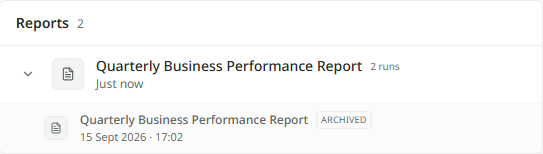
Each update is a whole new report, not a change to the old one. In the plus tab's list, the versions of one report are grouped. The newest is the face of the group, a small count says how many versions there are, and the chevron beside it opens the earlier ones under an Archived label. The same grouping shows in the Library.
An earlier version opens in its own tab, so you can put last month beside this month and read them together. Delete an old version from the list if you no longer need it; the others are untouched.