Sharing and presenting
Sharing a dashboard with colleagues, what they can do with it, and presenting it full screen.
Overview
A dashboard starts as yours alone. Share it and named colleagues can open it, see the same current numbers, and copy it to make their own. Present it and it fills the screen for a meeting. Both need a saved dashboard; see Building a dashboard.
Sharing by email
- Open the dashboard and click Share at the top right.
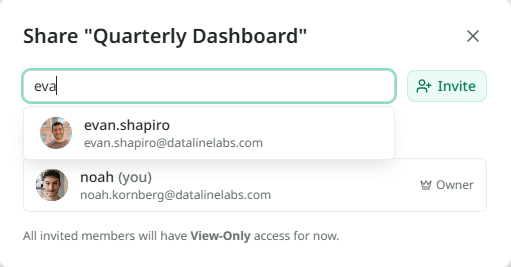
- Type a colleague's email address under Add people by email. As you type, Mira suggests people in your organisation.
- Click Invite. They join the list beneath, and the dashboard appears in their Library.
The list shows everyone with access. You are marked Owner. To take someone off, open the menu beside their name and choose Remove. They lose access straight away.
Until you share it, the list reads No one else has access yet.
Who owns it
The person who saved the dashboard owns it, and only the owner can change it: move a chart, ask for a new one, share it, or restyle it. Everyone else opens it read-only. Removing a chart or renaming the dashboard changes it for everyone, because they are all looking at the same one.
Someone you share with sees a Make a Copy button where the editing tools would be. The copy is theirs, in their own session, and changes to it do not touch yours. It is also how a colleague builds on your work without you handing over the original.
In their Library the shared dashboard sits alongside their own. If they no longer want it, its menu offers Leave Dashboard rather than Delete: it disappears from their Library and yours is untouched.

Presenting
Click Play at the top right and the dashboard fills the whole screen, with the chat and everything else hidden. The charts are read-only while you present, so you cannot move one by accident. Press Escape to come back.
The screen shows what fits. The dashed line across the canvas in normal view marks where the bottom of the screen falls, and anything below it is out of sight when you present. Keep what the meeting needs above it. See Editing the canvas.
Because the dashboard refreshes itself while it is open, a dashboard left presenting on a wall screen stays current through the day.