Editing the canvas
Moving and resizing charts, adding text and images, removing what you no longer need.
Overview
The canvas is the page your charts sit on. You can move them, resize them, remove them, and add a card of plain text between them. Only the person who owns the dashboard can edit it. Once it is saved, every change saves on its own.
The chat stays on the right the whole time, so the quickest edit is often to ask for it. "Make that a bar chart" or "add last year alongside" changes the chart in place.
Moving and resizing
Click a chart to select it. Drag it to move it; the other charts shuffle out of the way. Handles appear on the edges and corners of the selected chart, and dragging one resizes it. Charts snap to a grid of twelve columns, so a row of three fits neatly.
Click an empty part of the canvas to deselect.
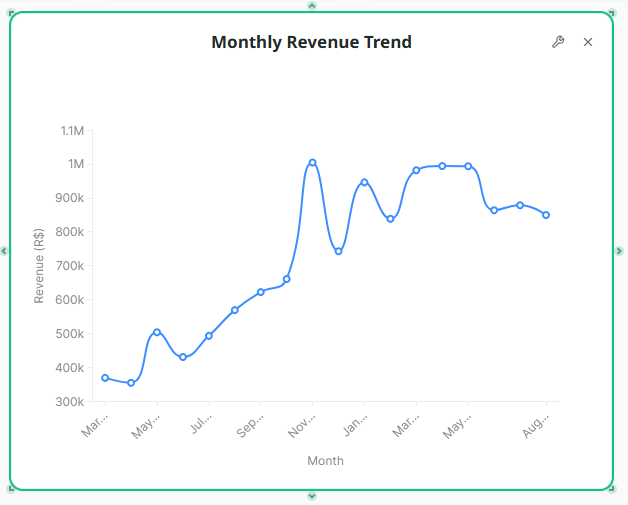
Editing and removing a chart
Move your pointer over a chart and two buttons appear at its top right.
| Button | What it does |
|---|---|
| Edit | Opens the chart for changes: the title, the kind of chart, the colours, and the axis labels. |
| Delete | Takes the chart off the canvas. |
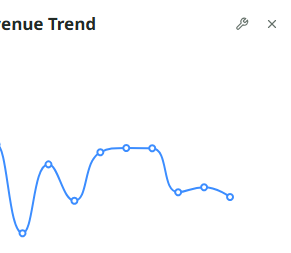
Deleting a chart from the canvas does not delete the answer in the chat. Ask for the chart again and it comes back.
Text cards
A text card is a short note on the canvas: a heading above a row of charts, or a line saying what a figure means.
- On an empty part of the canvas, drag out a box where the card should go.
- Let go, and choose Text from the two choices that appear. (Image puts a picture there instead, such as a logo. PNG or JPG, up to 100 KB.)
- Click the card and type. Press Escape when you are done to see it as it will read.
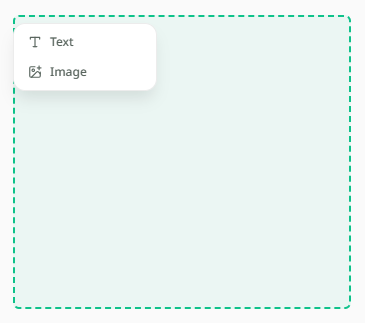
A text card holds up to 2,000 characters, and a dashboard can have up to five of them, and up to five images. Move and resize a text card the same way as a chart, by its bar at the top.
If you cannot edit
A dashboard someone has shared with you opens read-only, with a Make a Copy button in place of the editing tools. Copy it and the copy is yours to change. Sharing and presenting explains.