Shared sources
Connect or upload once for the organisation, then choose which departments see each table.
Overview
Sources is where an organisation's shared data lives. You connect a system or upload a file here once, for the whole organisation, and then choose which departments may see each of its tables. Open the organisation menu at the top of the sidebar, choose Settings, then Sources. Only Owners and Admins see this page.
Use it for data more than one department needs. Every connected system lives here. A file that only one department needs is better uploaded on that department's own Department data page. Where data comes from sets the two side by side.
Adding a source
- Click Add data at the top of the page.
- Choose Upload a file to bring in a spreadsheet, or Connect a tool to connect a system such as HubSpot.
- Follow the window through. Uploading files and Connecting a system cover each step.
The page lists each connected system under Connectors, and every uploaded file under Uploads. A system that was started but never signed in to shows Finish setup. Click it to pick up where it stopped.
Sharing a source with departments
Click a source to open it. The Sharing section has a row for each department, with a tick box and a short summary such as "all 12 tables", "7 of 12 tables" or "not shared".
- Tick a department to share every table in the source with it. Untick it to stop.
- Repeat for each department. Nothing changes yet: the rows say what will happen when you save.
- Click Save changes.
If you are taking tables away from a department, Mira asks you to confirm and says how many tables each department will lose. Nothing is deleted. The department simply stops seeing them, and you can share them again at any time.
Sharing one table
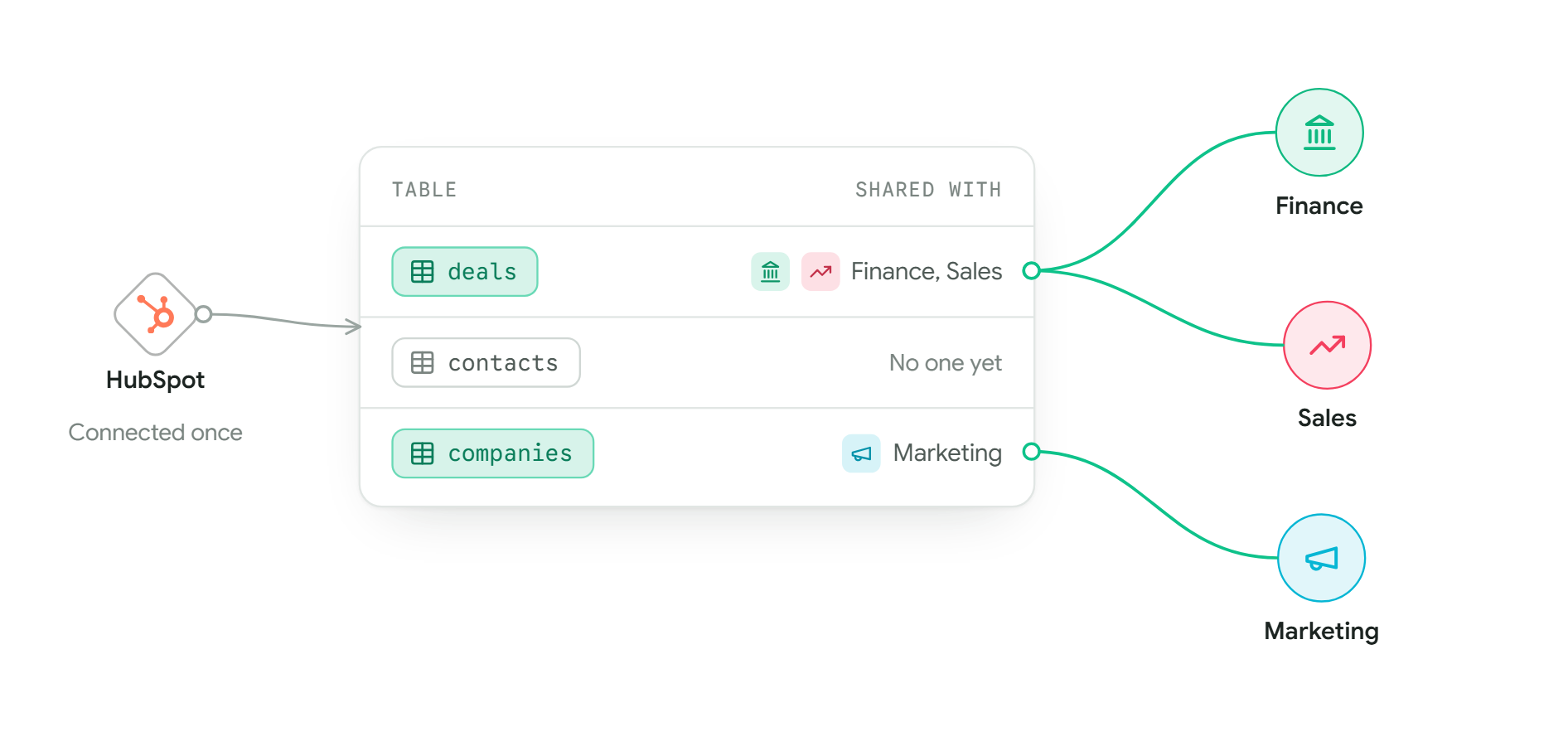
Sometimes a department should see only part of a source. At Kestrel Outdoor, Sales and Finance need HubSpot's deals, but only Sales needs its contacts.
- Open the source and click a table in the Tables list. A panel opens beside it.
- Open the Sharing tab and tick the departments that should see this table.
- Click Save changes.
Each row in the Tables list shows who it is shared with, or Not shared. Once a department has a table, its Lead decides which of their people can see it. See Department data.
Describing, replacing and deleting
The table panel's Details tab is where a shared table is described: its name, a short description, and what each column means. You write it once, and every department that has the table sees the same description. Departments cannot change it themselves.
- Replace file swaps an uploaded table for a new version. Its name, description and sharing stay.
- Delete table removes the table and its data for good. Mira first names the departments that will lose it and any dashboards that will stop working.
- Delete connector, at the foot of a connected system's page, disconnects the system. Tables it already brought in are kept.