The data catalogue
The picture of your organisation, every department and table you can see, and opening a table to look inside.
Overview
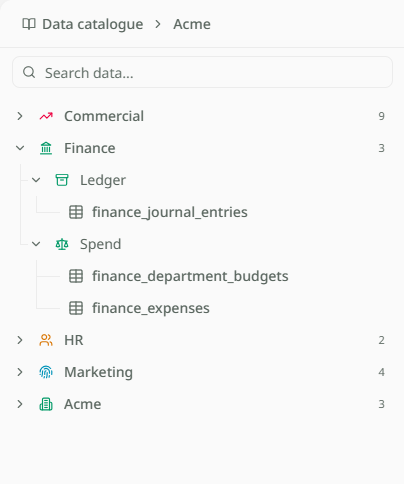
The data catalogue is where you see everything you can ask about. Open it from Data Catalogue in the sidebar. It lists every department and table you can see across the whole organisation, and draws a picture of how they fit together. Use it to learn what data Mira has before you ask, or to look at a table itself.
The picture of your organisation
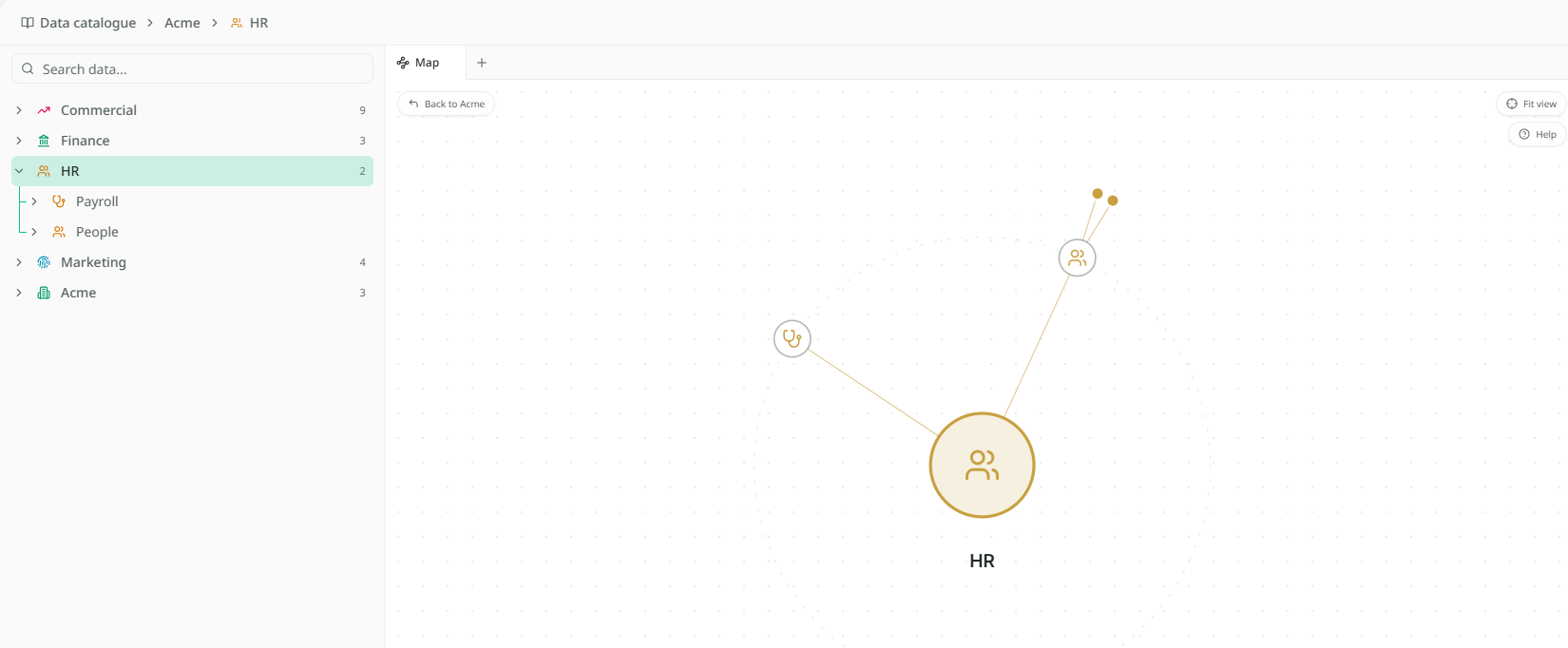
The page has two halves. On the left is a list: each department, the groups of tables inside it, and the tables in each. After the departments comes a section named after your organisation. It holds the tables connected or uploaded once for everyone, grouped by the system they came from. A table shared with two departments appears here once, not twice.
On the right is the map. Your organisation sits at the centre, the departments around it, and their tables beyond. Every table shows where it came from: a connected system's logo, or an upload.
The two halves move together. Click a department in the list and the map centres on it. Click one on the map and the list opens to it, with the lines beneath it lit. Click your organisation's name at the top to see everything again.
Finding a table
Type in the Search data box above the list. Searching for a department's name keeps everything inside it, so "Finance" shows all of Finance, not only tables with Finance in the name.
To ask about a table you already know, you do not need the catalogue. Type @ in the question instead. Pointing at a table shows how.
Opening a table
- Click a table in the list, or on the map. It opens in its own tab beside the Map tab.
- Click a column heading to sort by it, or use Sort in the toolbar.
- Use Filter to keep only the rows that match. Filters apply to the whole table, not only the rows on screen.
- Type in Search rows to find a value anywhere in the table.
- Page through with the arrows at the bottom. The count, such as 50 of 84,120 rows, says how many match.
- Click Export to download the matching rows as a CSV file.
Each open table keeps its own tab, filters and page until you close it.
When a table isn't there
The catalogue shows only the tables you can see. Which those are follows your departments, and what the organisation has shared with those departments. A table you cannot see is not greyed out or locked. It is simply not listed. If you are not in any department yet, the page says You don't have access to any data yet.