Setting up your organisation
The owner's path: departments and their Leads, the first system, inviting people.
Overview
This page is for the person setting Mira up for their company, usually the Owner. Your job is to get your people to their first answer. That takes three things: departments with a Lead each, some data, and the people themselves. Once departments have Leads, the Leads take over the day-to-day.
Everything here happens in Settings. Open it from your organisation's name at the top of the sidebar, then choose Settings.
Your organisation
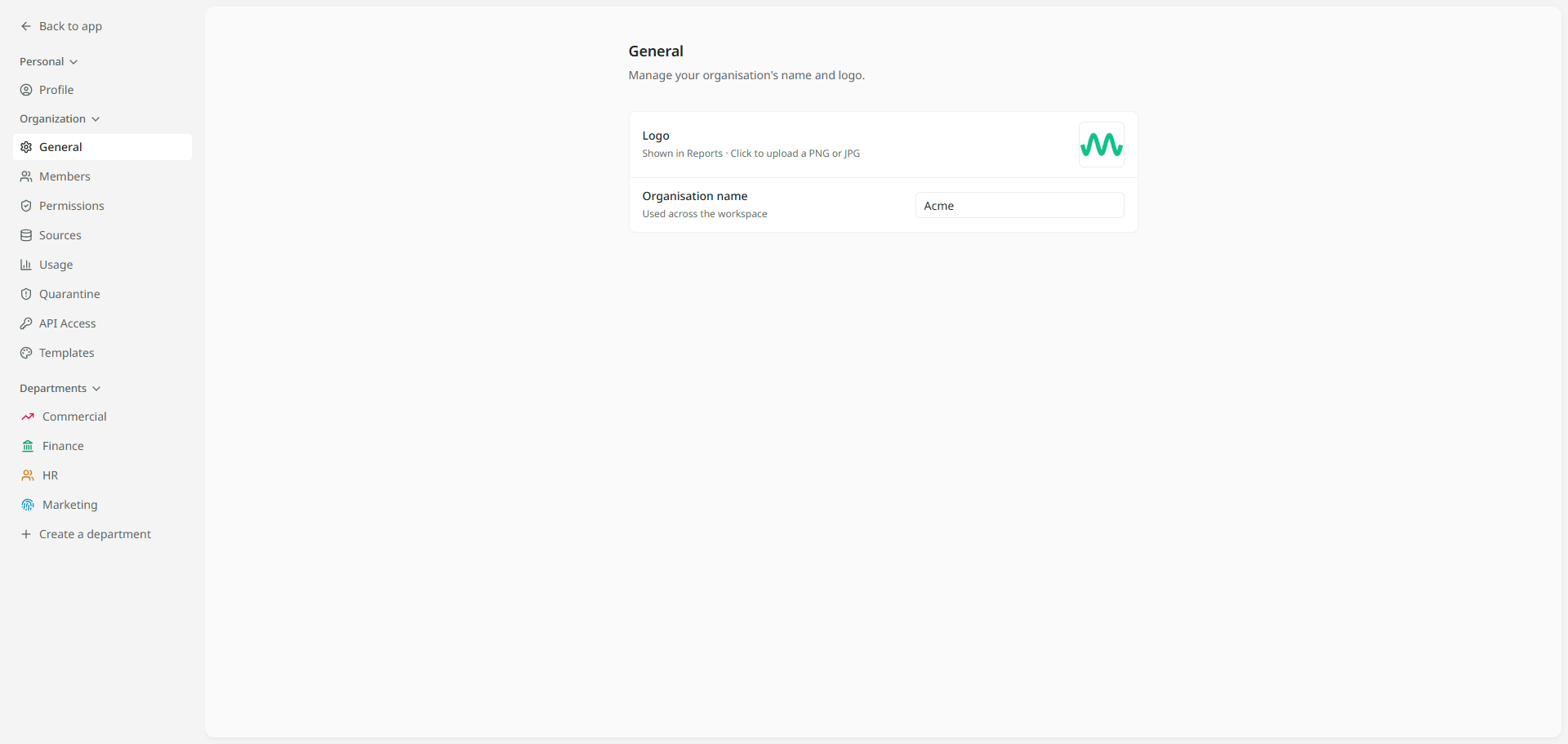
When you start with Mira, the Mira team creates your organisation with you and makes you its Owner. It carries your company's name and logo. You can change both later in Settings, under General.
Naming departments and their Leads
A department is a team that shares data, such as Finance or Sales. Start with the teams that will use Mira first. Kestrel Outdoor began with Finance, Sales and Marketing.
- In Settings, under Departments, click Create a department.
- Give it a Name and, if you like, a Description of what the team looks after.
- Choose who leads it. Every department needs a Lead, and it can be you for now.
- Click Create department.
The Lead decides who is in the department and which tables they see. Choose the person who knows that team's data best. How departments work explains what each role can do.
Connecting your first system
Mira needs data to answer from. You can upload a file or connect a system your company already uses.
- In Settings, open Sources and click Add data.
- Choose Upload a file for a CSV or Excel sheet, or Connect a tool for a system such as HubSpot.
- Follow the steps for your choice. A connected system keeps itself up to date from then on.
Mira only reads your data. It never changes anything in the systems you connect. Once the tables arrive, choose which departments can see each one. Kestrel Outdoor connected HubSpot once and shared its tables with Sales. Shared sources shows how, and Connecting a system covers each step of connecting.
Inviting your people
- In Settings, open Members.
- Under Invite people, type the person's email address.
- Choose their access: Admin if they will help run Mira, User for everyone else.
- Choose the departments they join and their role in each. A line beneath reads back what they will get, so you can check it.
- Click Invite. You can add several people before you click.
Each person gets an email. When they sign in, they join straight into their departments. Until then, they are listed on the Pending tab, where you can change or cancel the invitation. Members and access has the detail. Your first question is a good page to send them.
What your Leads do next
Once a department has a Lead, the Lead looks after it. They add people, choose which tables the department sees, and decide what each person can do. People and roles shows how.