People and roles
The people in a department, changing a role, what each role may do, and adding someone.
Overview
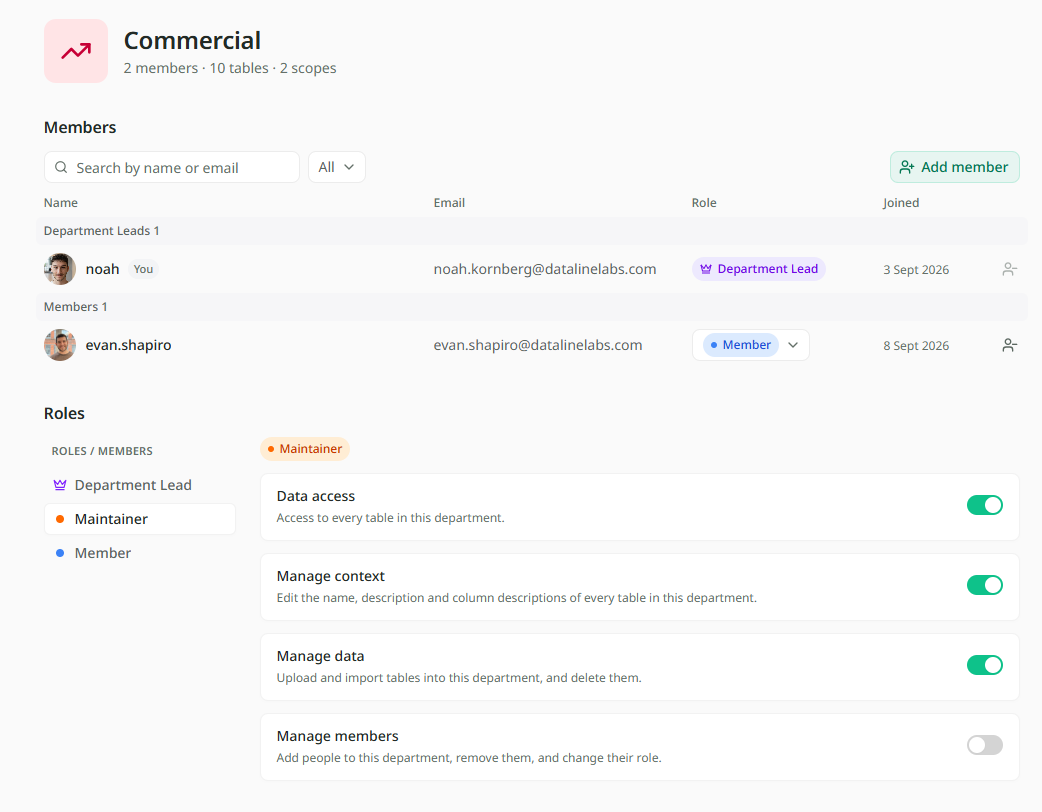
The People page is where a department's Lead decides who is in the department and what each person may do there. Open it from Department Management in the sidebar: click the department, then People. The Lead can open it, and so can Owners and Admins, and anyone the Lead has given Manage members.
Roles here are department roles: Lead, Maintainer and Member. They are separate from a person's organisation access. How departments work sets the two side by side.
The list of people
The Members section lists everyone in the department, with their email, their role and when they joined. Search by name or email, or use the role filter to show only Department Leads, Maintainers or Members.
Changing a role
Open the role menu on a person's row and choose Lead, Maintainer or Member. The change applies straight away. A department always keeps at least one Lead, so the last Lead cannot step down until someone else leads.
To take someone out of the department, click the remove mark at the end of their row and confirm. They lose the department's tables at once, but they stay in the organisation and keep any other departments.
What each role may do
The Roles section is a grid of switches. Pick a role on the left, then turn each permission on or off on the right.
| Permission | What it lets the role do |
|---|---|
| Data access | See the department's tables and ask Mira about them. |
| Manage context | Edit a table's name, its description and what each column means. |
| Manage data | Add data, replace a file and delete tables. |
| Manage members | Add people to the department, remove them and change their role. |
The Lead's switches are always on. Maintainer and Member start with everything off, and have exactly what the Lead switches on. At Kestrel Outdoor, Aisha leads Finance. She turns on Data access for Members, so Priya can ask about Finance's tables. She also turns on Manage data for Maintainers, so Dan can upload the monthly budget without being a Lead.
These switches cover the whole department. To treat one group of tables or one table differently, use the Permissions tab on the Department data page.
Adding someone
- Click Add member above the list.
- Choose Add by email… and type the address of someone already in the organisation.
- Choose their role. It starts on Member.
- Click Add. They appear in the list, and the department's tables are open to them as their role allows.
Owners and Admins also see the organisation's people listed in the Add member menu. Clicking a name adds that person as a Member in one step.
If the address belongs to someone who is not in the organisation yet, Mira says so and offers to invite them instead.
When a Lead may invite
Invite someone new… brings in a person who is not in Mira yet, straight into this department. Owners and Admins can always use it. A Lead can use it only when an Owner or Admin has switched on Can invite people in Permissions. Until then the option is shown but greyed out.
Someone a Lead invites joins the organisation as a User, with the department role the Lead picked. When Dan invites a new sales rep into Sales as a Member, they arrive able to ask about Sales and nothing else.