Style templates
A house style for dashboards and reports.
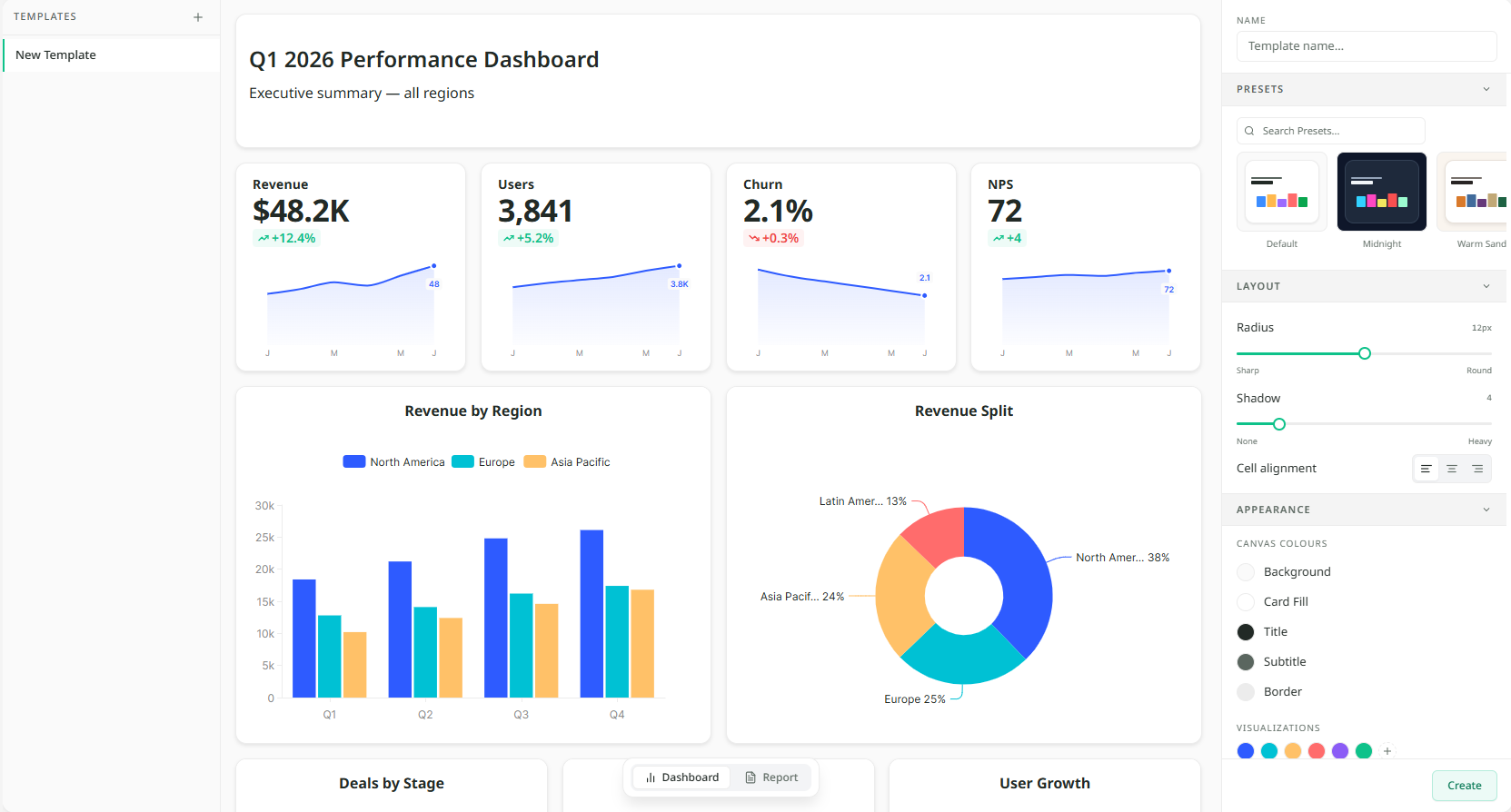
Overview
A style template is a house style: the colours, corners and shadows for dashboards, and the colours and layout for reports, saved under one name. Make one and everyone in the organisation can apply it in a click, so every dashboard and report looks like it came from the same company.
Owners and admins make templates on the Templates page in Settings. Everyone can use them from the Style panel. See Styling a dashboard and Styling a report.
Making a template
- Open Settings and choose Templates.
- Click New Template and give it a name, such as "Kestrel house".
- Set the colours and layout with the controls on the right. They are the same controls as the Style panel on a dashboard or a report.
- Use the Dashboard and Report switch under the preview to see the template on each.
- Click Save.
The preview in the middle updates as you change things, so you can see the result before you save.
Owners and admins can also turn a dashboard's look into a template. Style the dashboard the way you want, then click Save as org template at the foot of its Style panel.
The default template
Click Set as default on a template to make it the organisation's default. There is only one default at a time, and it is marked in the list.
A new dashboard takes the default style when it is first saved. Changing or deleting the default later does not restyle dashboards that already exist. Each keeps the look it was saved with, until its owner changes it.
Changing or deleting a template
Click a template in the list to open it. Change it and click Save, or click Delete to remove it. Deleting a template doesn't change any dashboard or report that used it.