Searching the web
Letting Mira look outside your tables: turning it on, what it costs, and how web sources show in an answer.

Overview
Mira answers from your organisation's tables. Sometimes the answer needs something from outside them too: an exchange rate, a market figure, a competitor's price, what a regulation says. Turn on Web search and Mira may look those up on the web while it works, and it shows you exactly which pages it used.
Web search is off unless you turn it on. Most questions never need it.
Turning it on
The switch sits beneath the box, next to the length menu. Click it before you send your first message.
- On the home screen, click Web search beneath the box. It turns green.
- Ask your question as usual.
- From then on a small globe at the top of the chat shows that web search is on for this chat.
The choice belongs to the chat. Once a chat has web search on, it stays on for every question in that chat, and a chat started without it stays without it. To ask without web search, start a new chat in the same session. Chats and sessions shows how.
What it costs
A question that searches the web uses more credits than one that does not. The switch says so when you hover over it. You are only charged the extra when Mira actually searches, not for every question in a chat with the switch on. Your organisation's usage page shows how credits are being spent.
How web sources show in an answer
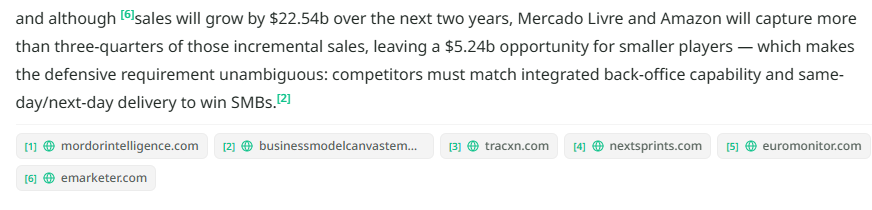
Anything that came from the web is marked, so you can always tell your own numbers from something Mira found outside.
- A small number in the text, like [1], sits after each figure or sentence that came from a web page. Hover over it to see the page's title, the sentence Mira took from it, and the site it came from.
- A list of sources at the end of the answer names every page used, in order, with a link to each.
Figures from your own tables are marked the way they always are, with the tables they came from and the working. Reading an answer explains those marks.
When to use it
- Comparing your numbers with something public: a market rate, an index, a published benchmark.
- Getting a definition or a rule right before applying it to your data.
- Checking a claim in a report you have been sent.
Leave it off for anything that is only about your own data. The answer will be quicker and cost less.